Works with: the sample · your own assets
What is on it
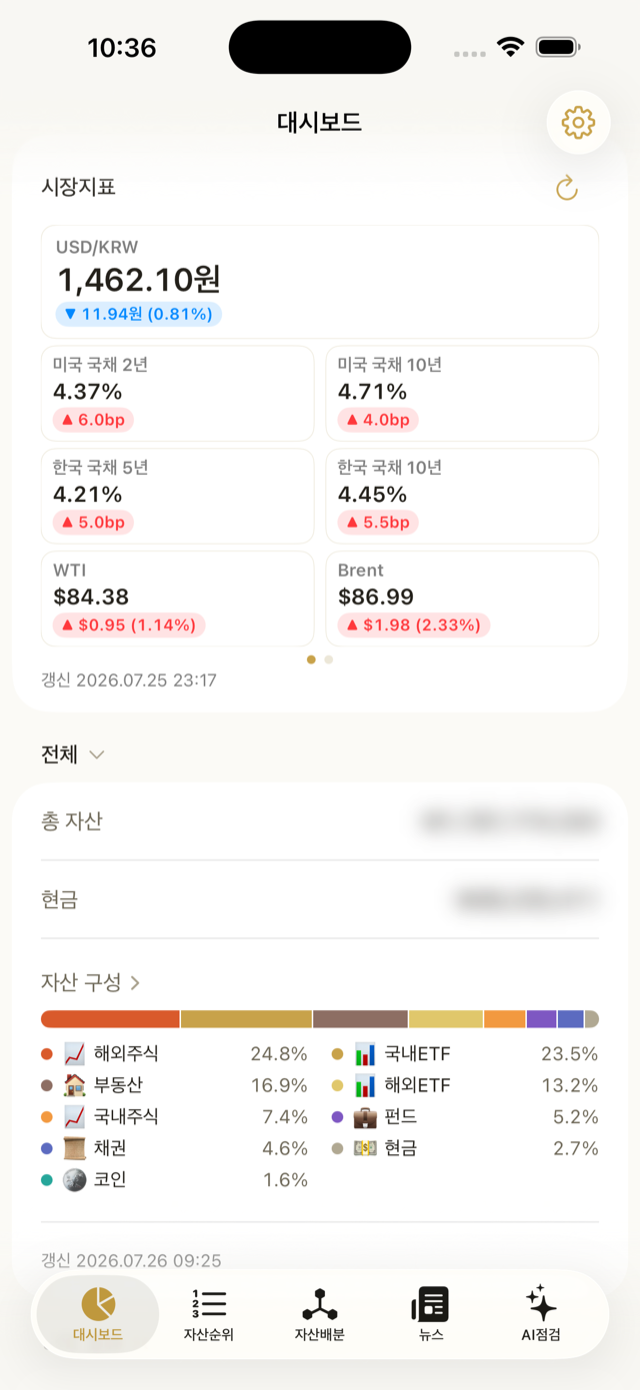
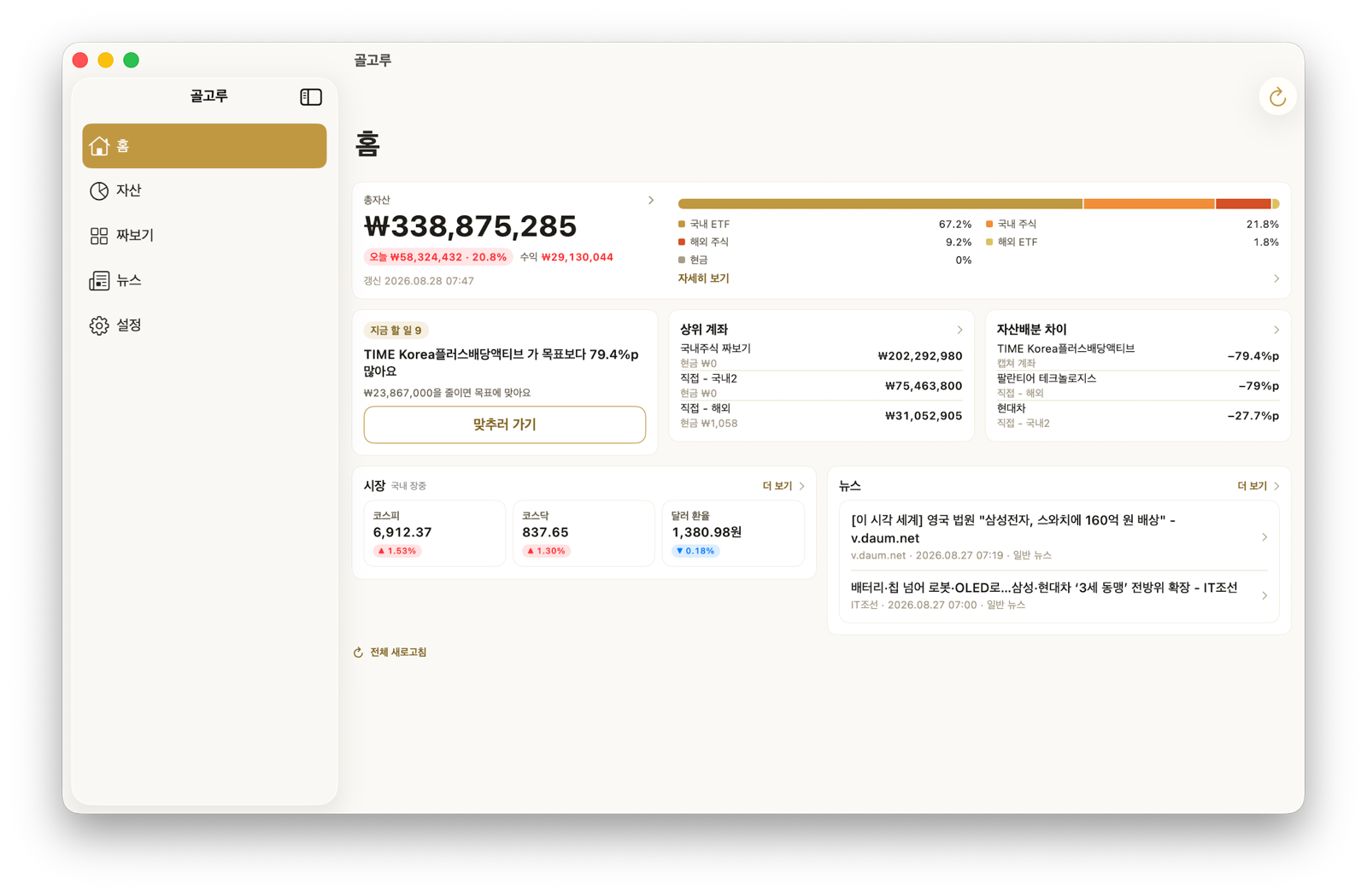
- Total assets — the amount, today's change and your gain so far, on one card. Amounts show by default; to cover them, turn on Settings > App > Hide amounts. They blur, and show only while you press and hold.
- The mix treemap — a block per class, sized by share (from 3.6.0). Colour is today's move — red up, blue down, deeper for bigger moves; real estate · savings · cash (no daily price) stay beige. After a month of history you can switch between Today and 1M, and the 1-month view also shows how each share changed. When everything is one type (all ETFs, say), the blocks split by holding instead (from 3.7.1). Tap a block or See details for the portfolio report.
- Market temperature — whether the Korean and US markets are cold, normal or hot (from 3.5.0). Tap for each gauge's trend and how your portfolio moved with it (market temperature).
- What to do now — appears only when something has drifted from its target by more than your threshold (5 pp by default). Go adjust opens the adjustment plan. When there is nothing to adjust, the card does not appear at all.
- Markets — three cells. The exchange rate always keeps its place, and the first two follow whichever market is open — KOSPI · KOSDAQ while Korea trades, Nasdaq 100 · S&P 500 while the US does. More shows all eleven, treasury yields and oil included. On Mac · iPad there are two rows — the other market's two indices and the US 10-year Treasury are added, each with a mini chart (from 3.7.0).
- News — two recent headlines (three on Mac · iPad). Tap to read; More goes to the news tab.
The account list and the list of gaps live on the Assets tab. The first screen does not repeat the same list.
On Mac · iPad
With a wide screen the large total sits next to tiles for what to do now · market temperature · largest accounts · target gaps, with Markets (two rows, mini charts) and News (three) side by side underneath. These are machines for seeing several things at once, so moving between tabs costs more than it does on a phone.
Home screen widget
iPhone · iPad · Android from 3.1.0, Mac from 3.2.0. Choosing what it shows from 3.7.0.
Long-press the widget and choose Edit Widget (Android: when you place it, or long-press it again) to pick what it shows.
| Shows | What you get |
|---|---|
| Automatic (default) | Your mix normally; up next when a rebalancing round or contribution day is near |
| Your mix | The same blocks as the home treemap — size is share, colour is today's move, with the time of the prices (“as of 15:30”) |
| Market temperature | Whether Korea and the US are cold, normal or hot, a small triangle under the bar for where it is now, cooling or warming |
| Up next | The first that applies, in the order below |
Up next
It checks these in order and shows the first that applies.
- Rebalancing round — days to the next round of a split rebalancing (D-4 · Today) and how many orders. If you have reserved orders at your broker, the day they go out comes first. With several accounts waiting, the soonest one is large and the rest are listed with their dates.
- Contribution day — with the contribution split reminder on, it counts down from a week before.
- Holding furthest from target — otherwise, the gap in percentage points and the target bar (gold is now, the dark tick is the target).
Tap it to go straight to that task — the rebalancing round, the contribution split or the account. It comes in small and medium sizes; medium lists the orders or each account's date on the right.
- No amounts or quantities. Other people can see a home screen, so it shows names, weights, moves and dates only.
- The widget never goes online by itself. It redraws when you open the app and counts the days down at midnight on its own.
- To add it: long-press the home screen and choose Add widget (Android: Widgets; Mac: right-click the desktop › Edit Widgets), then pick Golgoru.
Worth knowing
- Dollar holdings are converted to won with the USD/KRW value from market indicators, inside the app only.
- Pull down to refresh prices, assets and news together. On Mac and iPad it is the refresh button at the top right.
- Appearance (system · light · dark) and text size are in Settings > App.