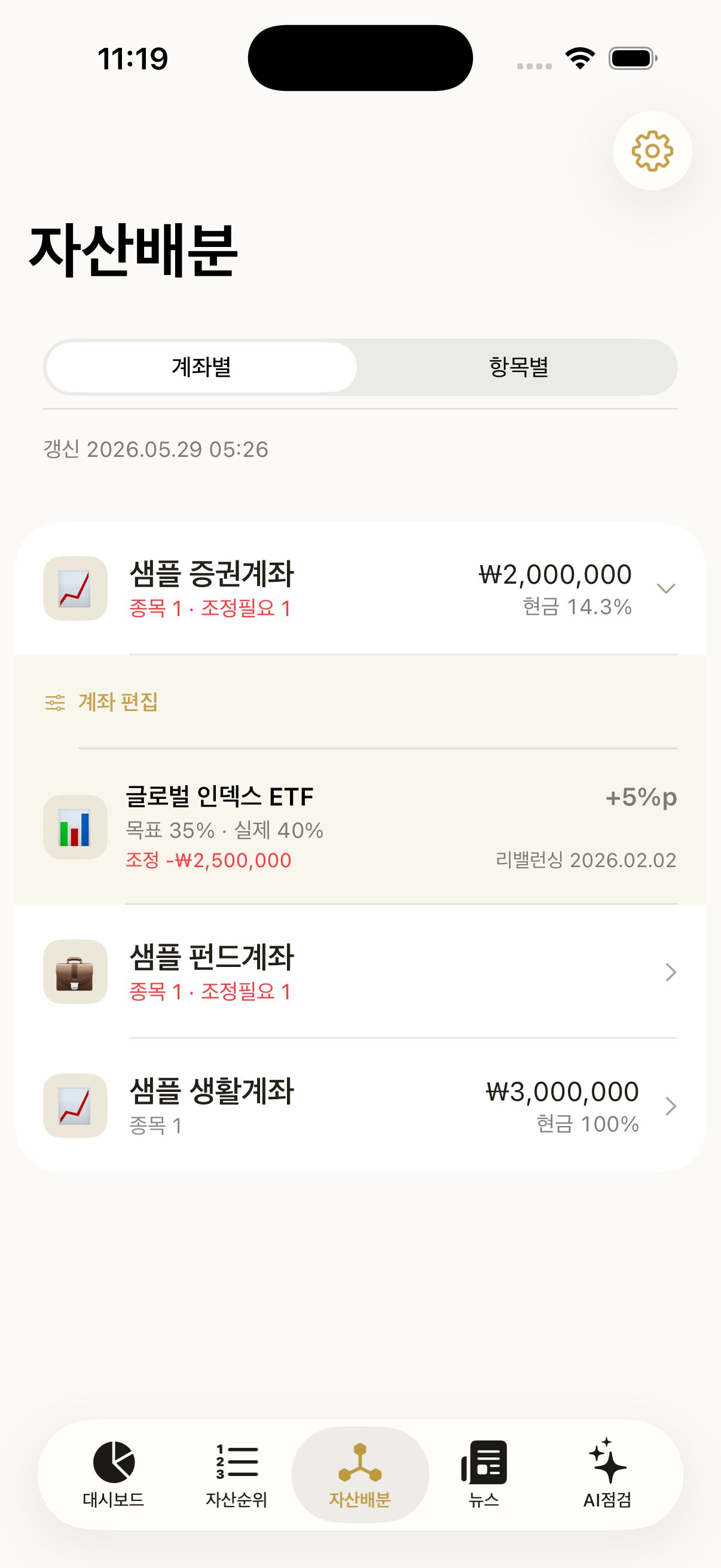
Works with: the sample · your own assets (editing target weights only when you enter your own assets)
What you see
One card per class. On the bar, the dark tick is the target and the filled colour is where you are.
- Above the target it says trim; below it, add — with the amount.
- The target and current figures carry amounts —
Target 35% · ₩17.5M/Now 40% · ₩20M. With percentages alone, nothing on screen says 35% of what. - Classes inside the range fold into one line —
Cash target 10% · ₩5M · same as now. - The order is fixed, biggest gap first. There is no sort to choose.
- Tapping an adjustment row opens that holding's screen — deciding how much to trim means looking at today's price.
One threshold, in one place
The threshold lives at Settings > Data > Adjust when off by, and nowhere else. The pp badge on the Assets screen and the list here use the same value. Set per screen, you end up with “three need adjusting but nothing is marked”.
One account at a time
Coming in from an account shows only that account. Tapping into your brokerage account and being told about your fund account breaks the thread. Inside an account the holding is pinned down, so it goes as far as share counts — about 2.5 of 12 shares. See the full plan at the bottom widens it again.
After you trade
The app does not place orders. Update the quantity and average cost in account editing to match what you bought or sold in your brokerage app. The plan recalculates the moment you do.
Editing target weights
When you enter your own assets, the account editing screen changes quantity, average cost, target weight and cash balance in one place. Open it with Edit in the account, or from ⋯ > Edit at the top right.
- Add holdings by search; anything search does not carry (cash · deposits · savings plans · real estate · bonds · funds) is picked from a list.
- Cash takes a target weight too — put a target % on the cash row and it counts in the total.
- If you changed target weights, the account has to add up to 100% to save (changing quantities alone has no such limit).
- Holdings with no target still appear, at 0%.
- To move several accounts' targets at once, use ⋯ > Bulk at the top right (reduce · add · make cash).
When another device got there first
If the same holding was changed differently on two devices, saving asks which one to keep. Changes to different holdings are already merged, so you are only asked about what really diverged. You cannot close without choosing — that would leave the edit neither saved nor discarded.
Split this month's contribution
Available from 3.1.0. The card shows on Home once an account has target weights.
For accounts you top up every month (pension savings · IRP · ISA), this answers “where should this month's ₩500,000 go?”. Tap Split this month's contribution on Home, pick an account and enter the amount:
- It works from the total including the new money and fills the underweight holdings first. Nothing is sold.
- Each line shows the weight now → after buying, next to the target; whatever can't buy a whole share stays as cash.
- Even an account that's exactly on target splits the new money by its target weights — the adjustment plan works from today's total, so it would have nothing to buy here.
You place the orders in your brokerage app. If you enter your own assets, tap Bought — add to holdings afterwards: the shares are added (average price is weighted) and anything left over becomes that account's cash.
Turn on Remind me every month and pick a day (1–28) to get a reminder at 9 a.m. that day. The account, amount and day are stored on this device only.
Rebalancing plan
The app does not place orders. It builds a plan of what to buy and sell, and you place the orders yourself in your brokerage app. Check off what you ran and your holdings and records line up.
1. Build the plan
Pick the holdings, choose how many rounds (1 · 3 · 5) and the interval (at once · 1 day · 7 days · a month · your own), and it works out quantities and amounts per sell and buy leg, down to the cash you would have left.
- Sells are worked out first to raise the money, and the buys are filled from it.
- It only adjusts inside one account. Nothing moves between accounts.
2. Save it → in progress
Save the plan and it stays on the adjustment screen as an in progress banner. It survives quitting the app, and tapping the banner reopens it any time.
If you set an interval, a notification arrives at 9:05 in the morning on each round's due date. Tapping it opens that plan (you have to allow notifications once for this).
3. Run it and check it off
Place the orders in your brokerage app, come back, and check them.
- Tap done on a holding, or check the whole round if you ran the round in one go.
- Checking updates your quantity, average cost and cash (when you enter your own assets). Skip it and your ledger keeps the old quantity, so the next plan is built on holdings that are wrong.
- Average cost is re-weighted on buys only; sells leave it alone. The app cannot know your fill price, so it records the plan's expected price.
- Check every line in a round and it moves to the next; finish them all and the banner goes away.
4. Look back
Records on the adjustment screen stacks them by plan. Date, account, count and the sell/buy totals are folded up; open one and you see the round, price and amount. Scheduled notifications are listed there too, and tapping one goes to its plan.
Records are kept on this device only (checked something by mistake? press and hold to delete).
Try rebalancing
Since 3.7.0 · also in the sample.
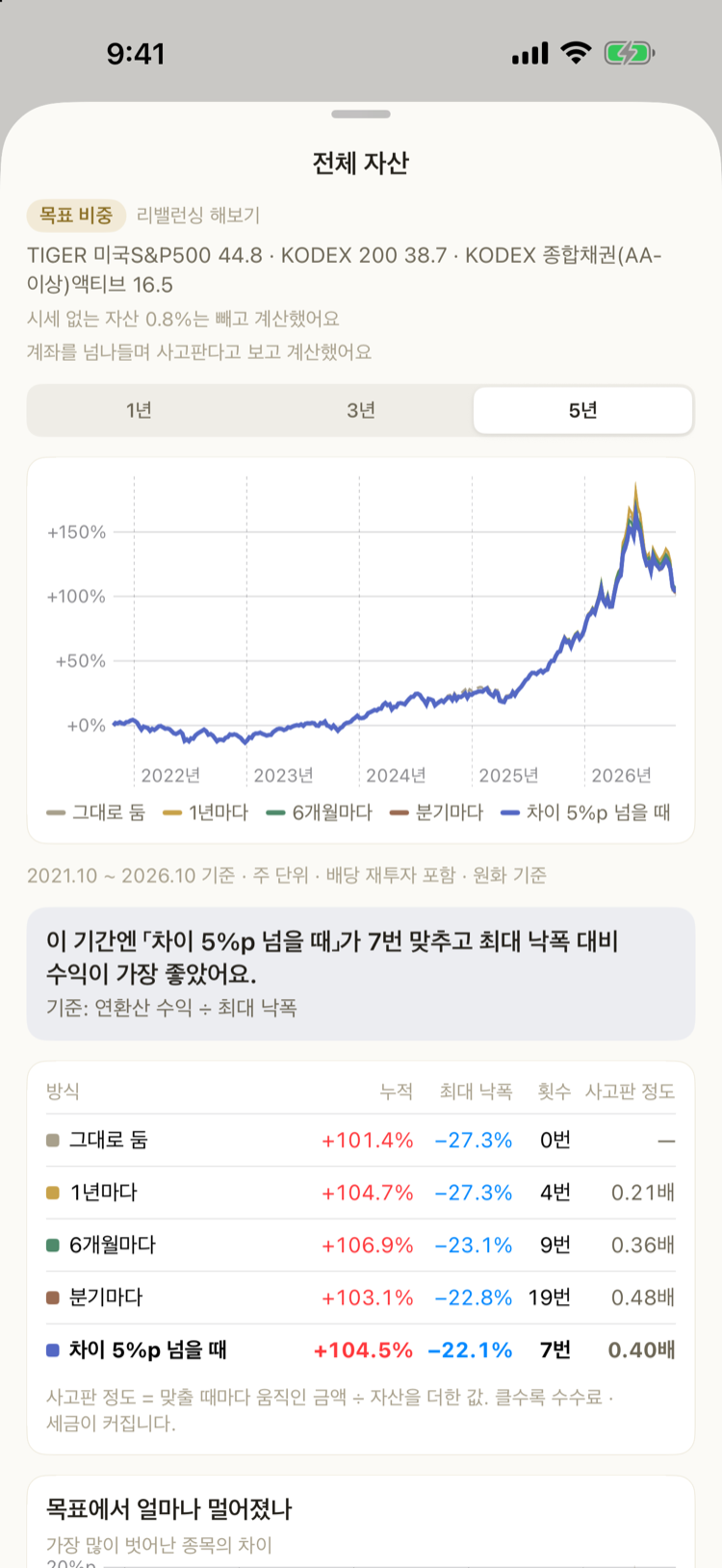
See side by side how your current target weights would have done over the last 1, 3 or 5 years under different rebalancing rules. It is there to give you a feel for how often rebalancing paid off — it does not suggest new weights.
Where to open it
- Account detail — “Try rebalancing” under the holding blocks.
- Assets — “Try rebalancing all assets” at the bottom of the account list. Each account's (target weight × account value) is added up into one mix, assuming money can move between accounts. Accounts without targets count at their current weights.
- Build detail — “Compare with rebalancing” under past performance.
- On Mac · iPad the Assets tab opens it in the right-hand pane instead of a sheet.
Five rules — Leave as is (buy at the weights and hold — the same maths as past performance) as the baseline, then back to target yearly, every 6 months, quarterly, or whenever any holding drifts off target by the threshold (the same threshold as the adjustment plan, 5pp by default).
What you see
- Five cumulative return curves — tap the legend to keep just one.
- A one-line summary — the rule with the best return for its worst drop (annual return ÷ max drawdown) and how many times it rebalanced. If the five end within 1pp of each other it says rebalancing made little difference; if leaving it alone earned the most, it says how far the weights drifted in exchange.
- A table — total, worst drop, times, and traded (the amount moved at each rebalance ÷ assets, added up — higher means more fees and tax).
- “How far it drifted from target” — the gap of the holding furthest from target over time, with the threshold line.
How it is calculated — weekly, dividends reinvested (adjusted prices), in KRW, without fees or taxes. Assets with no daily price (cash, real estate, savings) and Upbit coins (no dividend-adjusted price) are left out and the rest re-weighted to 100%. If the other holdings have more than a year of prices, holdings with less than a year are left out too — otherwise one recent listing would cut “5 years” down to six months. Anything left out is listed on screen.
It recalculates what already happened; it is not a forecast or investment advice.
What the weight divides by
The denominator for your actual weight is the account total including its cash. Leave cash out and holding a lot of it makes your stock weights look higher than they are.
This screen works out the gap. You place the orders yourself, at your broker.